How to limit the speed of devices connected to the MERCUSYS router
Introduction
This article explains how to limit the internet speed of specific devices using the Speed Limit feature on a MERCUSYS router.
Configuration
Step 1. Log in to the router’s web management page.
Open a web browser such as Chrome, Firefox, or Edge. Enter one of the following addresses in the address bar and press Enter. Log in with the password you set for the router.
mwlogin.net
192.168.1.1
For details, please refer to How to log in to the web management page of MERCUSYS Wireless Router
Step 2. Go to Network Map > Clients page to display the list of devices connected to your router. The figure below shows MR27BE’s Clients page as an example.
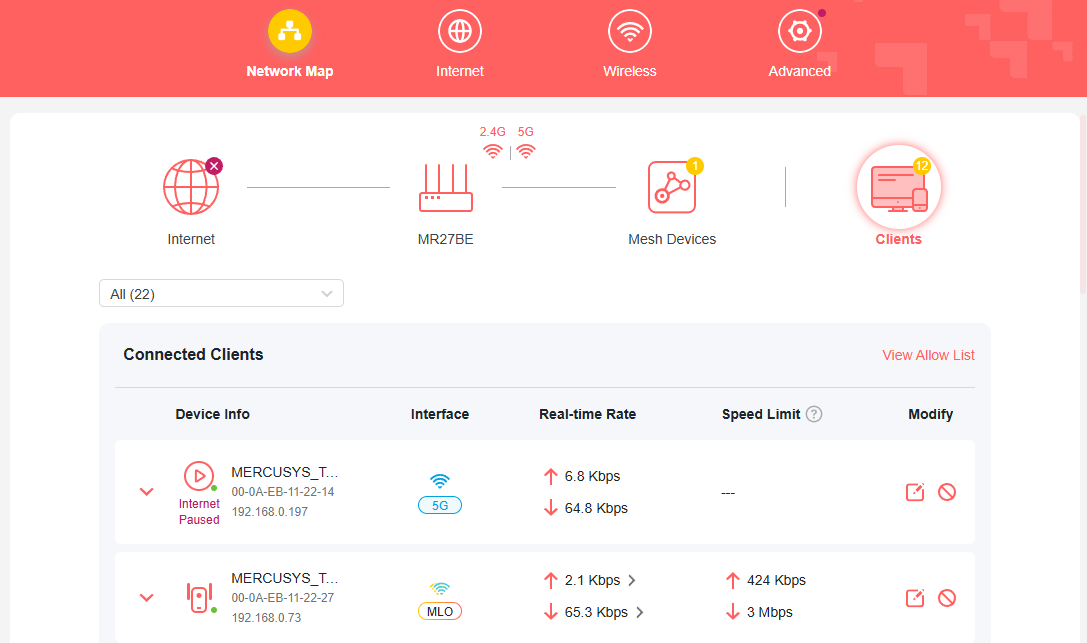
Step 3. Find the device you want to limit the speed, click  option in the Modify column and enable Speed Limit toggle.
Note: When speed limit is enabled, the client will be removed from the QoS high-priority list.
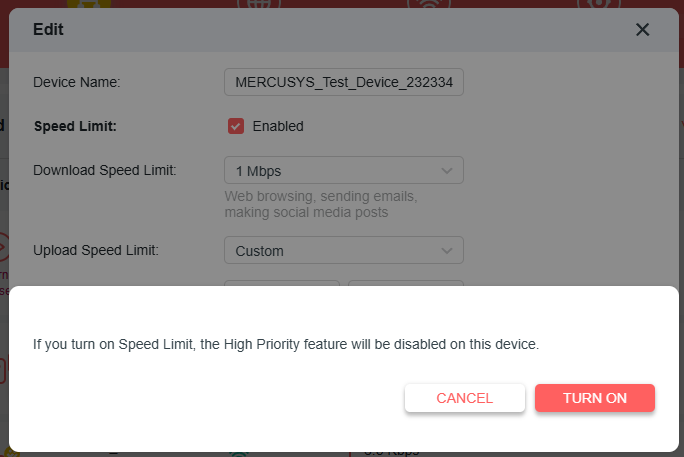
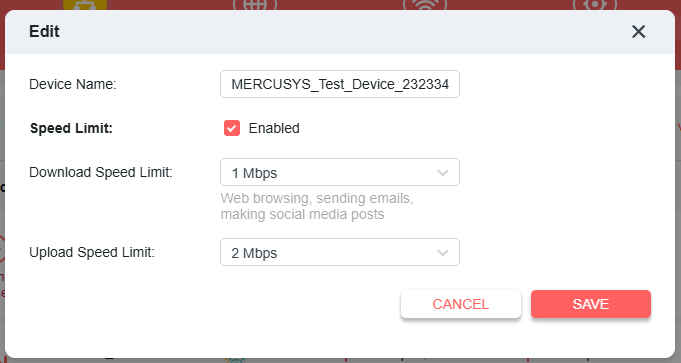
Step 4. Set the download and upload speed limit according to your needs. Then Click Save. Now the speeds of the device will be limited.
Troubleshooting
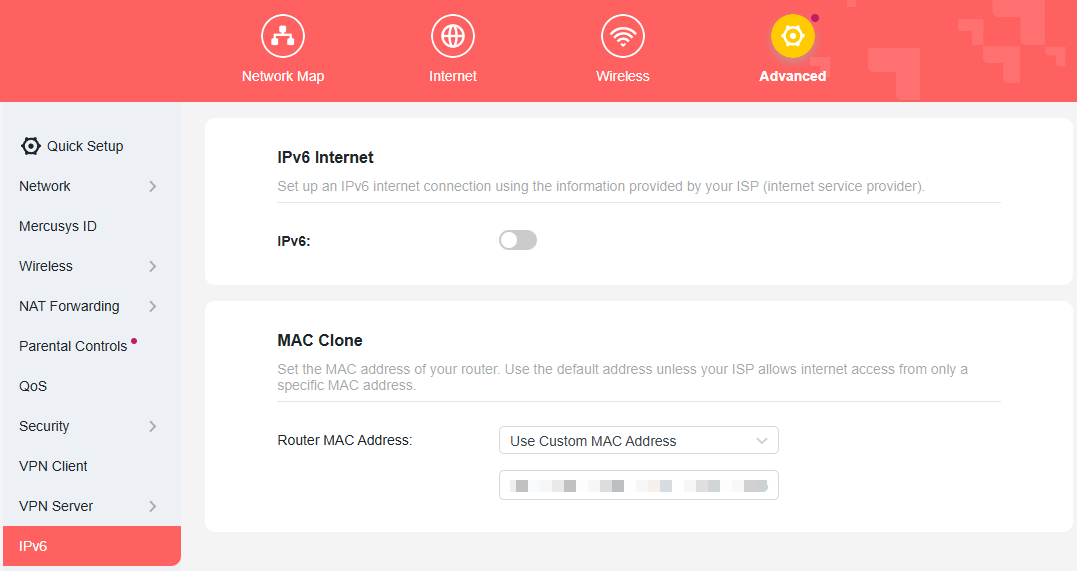
Speed Limit doesn’t take effect? If the speed of the device is not limited successfully after configuration, please go to Advanced > IPv6 in the web page to disable IPv6 function and reboot the MERCUSYS router.